
Create content for Mentimeter, PowerPoint (Copilot) & Rise 360 straight from Tilda
Tilda’s “Create with tool” templates let you turn an intervention into ready-to-build content for your delivery tools, while keeping all the behavioral science and learning design intact. In this walkthrough, we’ll export a survey to Mentimeter, a workshop deck to PowerPoint via Copilot, and an e-learning module to Articulate Rise 360 (plus an Evolve option).

Watch the video and follow along by logging in to app.heytilda.com. Full walkthrough with screenshots below.
What you’ll need
Have a project with interventions in Tilda (e.g., survey, workshop, e-learning). To fully follow along you'll need access to: Mentimeter (with Start with AI), Microsoft PowerPoint with Copilot, and/or Articulate Rise 360. 
Open your initiative in Tilda
From your project open the relevant intervention. Click Create → Choose tool to create with to see available templates matched to that intervention type. 
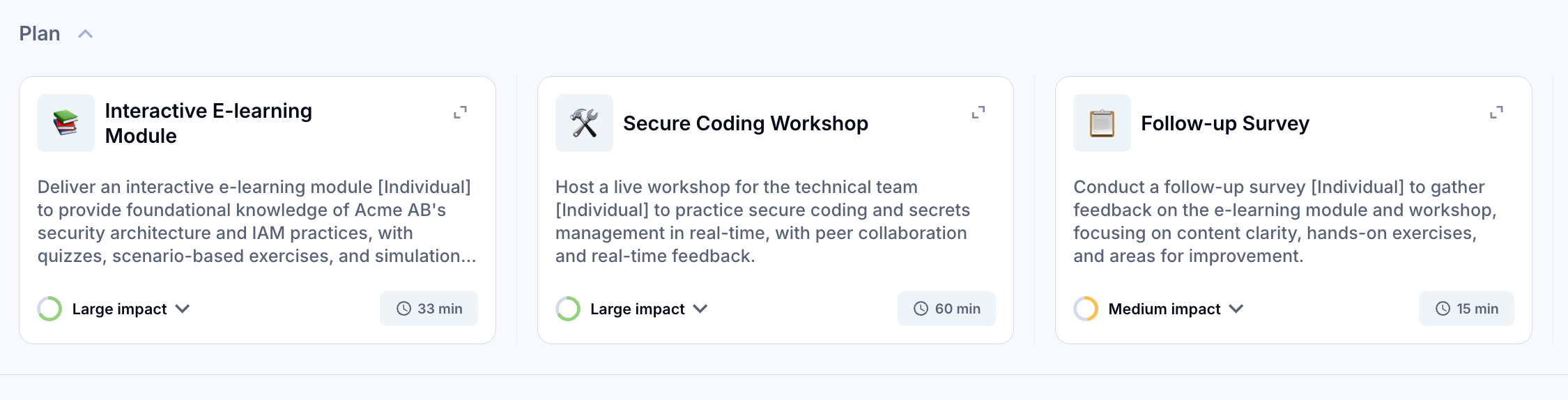
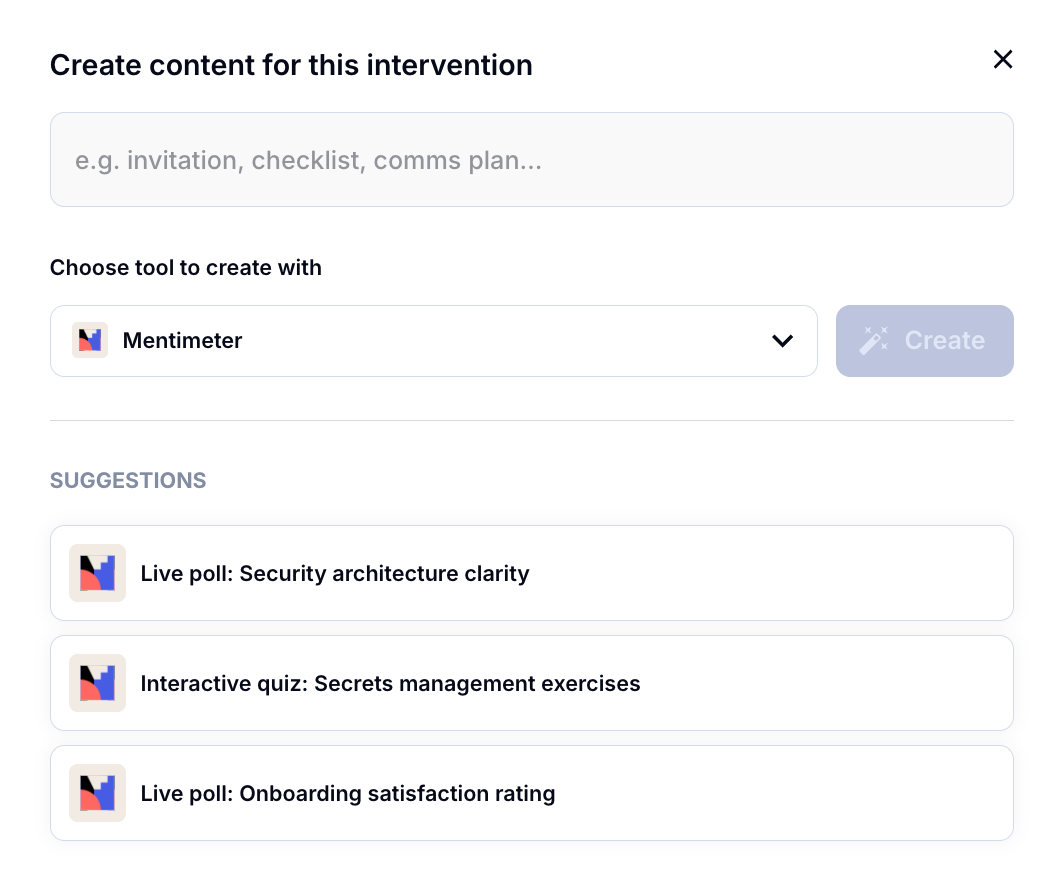
Export a survey to Mentimeter
Tilda generates an AI-ready prompt tailored to your intervention and to what Mentimeter’s AI builder expects.
1. In your Survey intervention, choose Mentimeter → Self-paced survey (all questions) → Create.
2. Copy the generated prompt and follow the on-screen instruction: in Mentimeter, click Start with AI and paste the prompt.
3. Mentimeter builds a first draft in seconds. Apply your Menti templates, tweak wording, and finalize. 
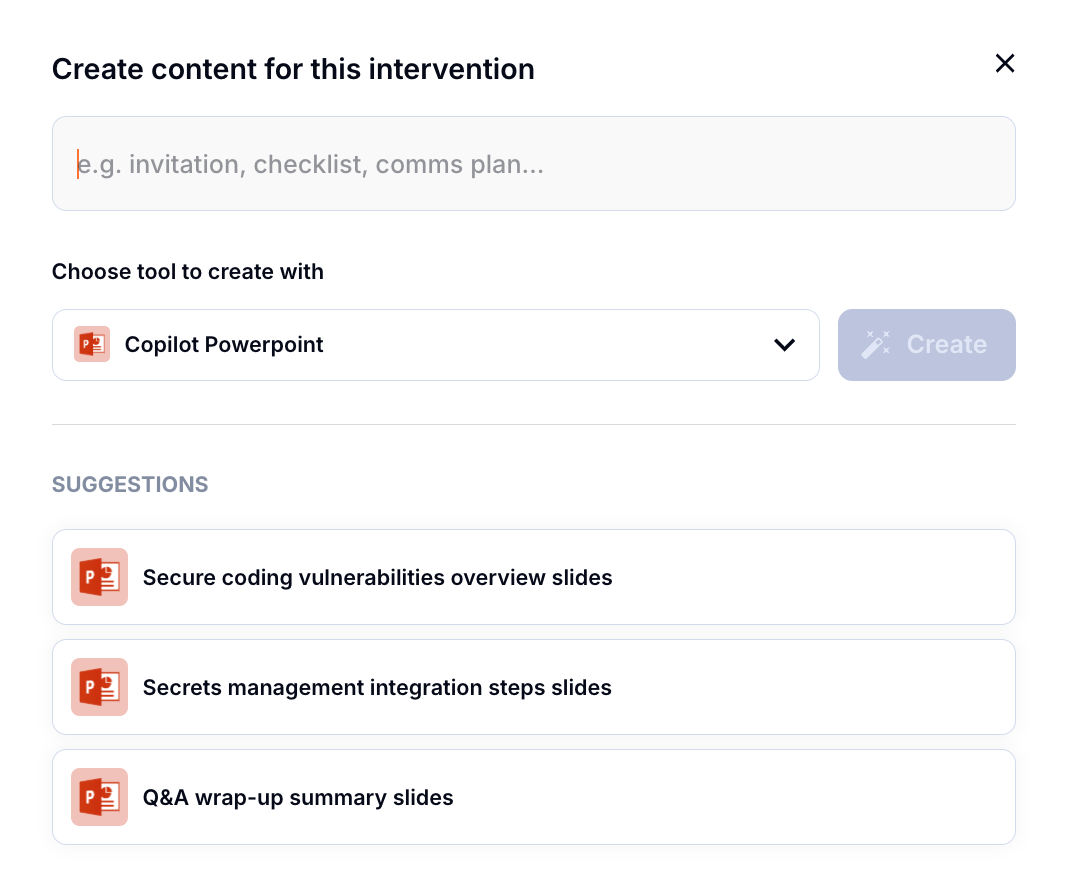
Build a workshop deck with PowerPoint (Copilot)
Tilda prepares a Copilot-ready prompt to build a complete slide deck.
1. Open your Workshop intervention → Copilot PowerPoint → Build full PowerPoint → Create.
2. Copy the prompt. In PowerPoint, start a Blank presentation, click Create presentation (the Copilot stars indicate it’s active), and paste the prompt.
3. Pick a theme. Optionally upload reference files (e.g., older decks or exported design details) to OneDrive and reference them so Copilot can incorporate the style.
4. Let Copilot generate; then refine slides as needed. 
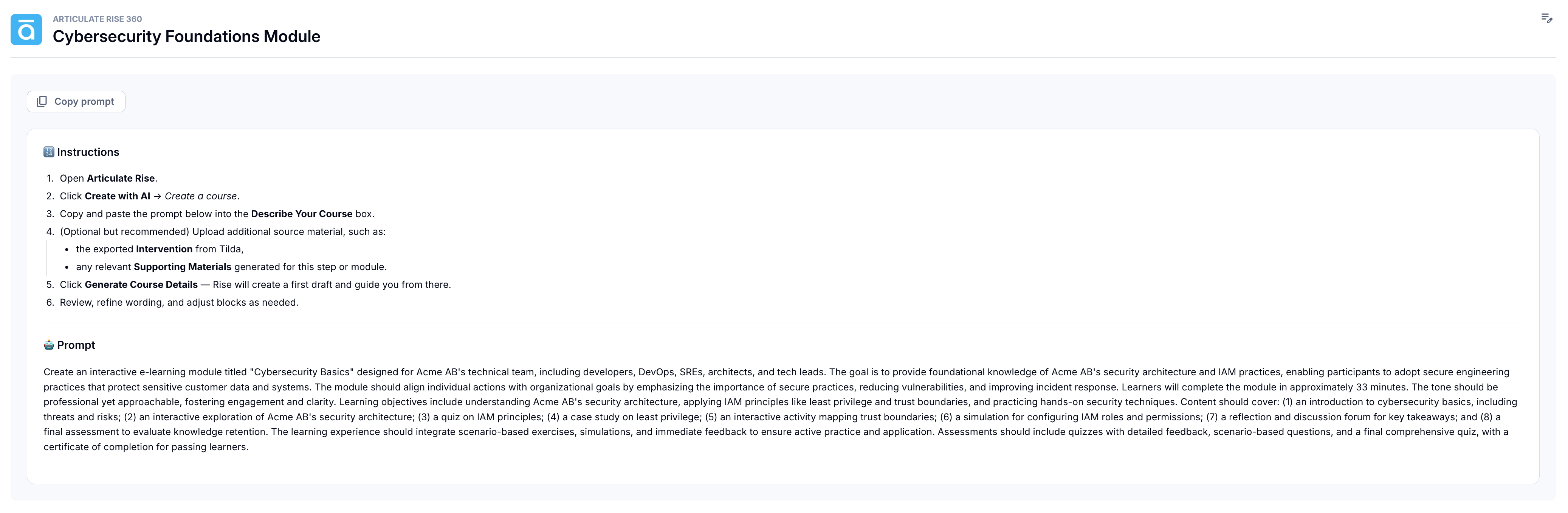
Generate an e-learning module in Articulate Rise 360
Tilda composes a prompt aligned with Rise’s AI Creator format and pulls context from your intervention.
1. Open your E-learning intervention → Articulate Rise 360 → Create to get the prompt and short usage notes.
2. In Rise 360, open AI Creator, paste the prompt, and generate.
3. Pro tip: export your detailed design from Tilda as a PDF and add it in Rise to give the AI richer context (e.g., objectives, sequence, quiz items). Then polish the content.
Alternative: Build in Intellum Evolve (no AI builder)
If you use Evolve, Tilda outputs a structure Evolve expects (intro, learning objectives, then pages → sections → rows).
1. Generate the Evolve outline in Tilda.
2. Copy/paste into Evolve and assemble manually. (When Evolve ships an AI builder, Tilda will add support.) 
Why this works
Tilda combines your initiative’s context (goals, audience, other interventions) with each target tool’s prompt format, so your exported content stays aligned with behavior-change and learning science as you build in your delivery stack.
Try it now. Head to app.heytilda.com to log in and start a new project.